
Only one API Server is supported in one Logpoint Director setup.
Boot your system with Logpoint Director ISO v1.0.0.
Select API Server in the Director Server Type panel and click OK.
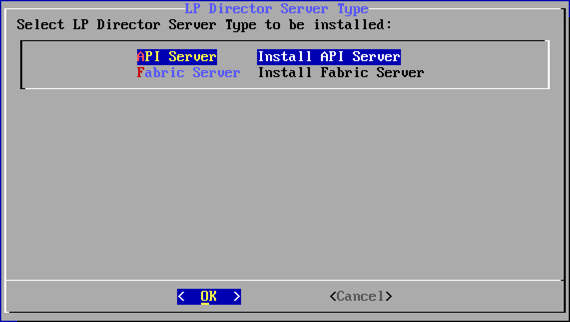
Selecting LP Director Server Type
The installer detects the number of hard disk drives present in the system and shows various options available for the Director installation. The available options for Director installation according to the number of HDD are:
Number of HDD(s) |
Mode of Installation |
|---|---|
1 |
Single |
2 |
Mirror/ Single |
3 or more |
RAIDZ/ Mirror/ Single |
Note
The ZFS (Zettabyte File System), used by the Logpoint Director, provides a software-defined solution for disk-based redundancy (Mirror, RAIDZ). Hence, it is not recommended to use hardware-based RAID. Doing so limits the ZFS to perform self-healing on checksum failures.
When selecting the RAIDZ mode, the first three disks is used for OS and Application installation. The remaining disks, if any, can be used to extend the disk space or used as L2ARC (Level 2 Adjustable Replacement Cache) or ZIL (ZFS Intent Log) for enhancing the read/write performance of ZFS. It can be done using ZFS commands.
Click Back to change the mode of installation or click Continue to proceed.

Start Installation or Return to Main Menu
The first reboot of the installer occurs.
The installer detects the list of Ethernet interfaces connected to the system. Choose the desired network interface to modify its configuration.
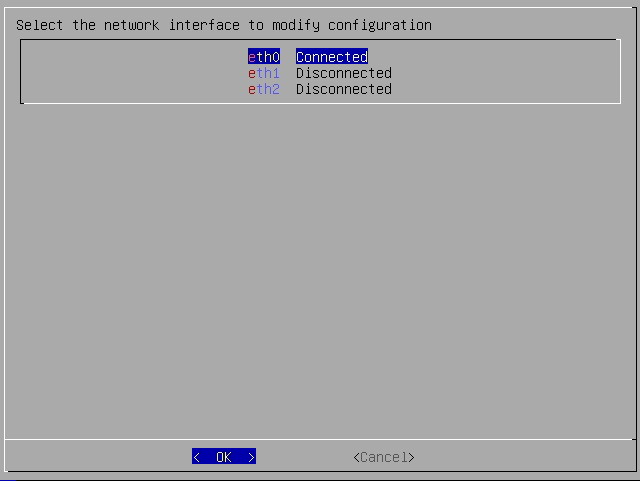
Select the Network Interface
Click OK.
The installer extracts the configuration of the selected Ethernet interface. Revise the configurations if necessary and click Submit.
The full configuration details of the selected Ethernet interface is displayed if DHCP is enabled. If DHCP is not enabled, then only the fields “Hostname” and “DOMAIN” appear and you need to manually enter the “IP”, “Netmask”, and “Gateway” fields.
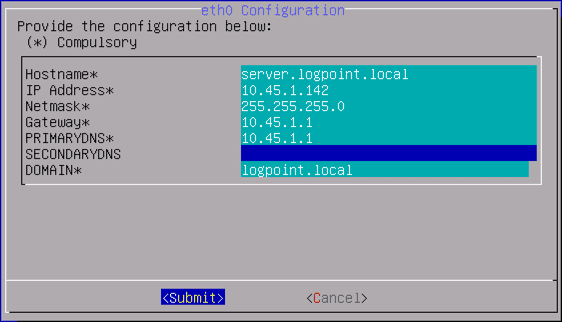
Enter the Network Configuration
Click Back to revisit the configurations or click Continue to proceed.
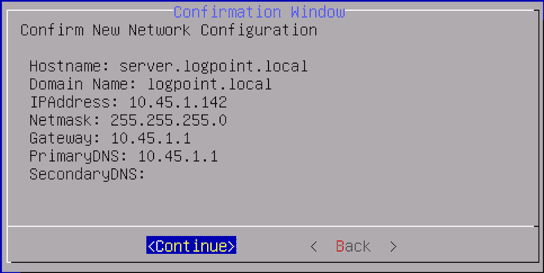
Confirming the New Network Configuration
Enter the number of Fabric Servers that the API server (that is being configured) will connect to and click OK.
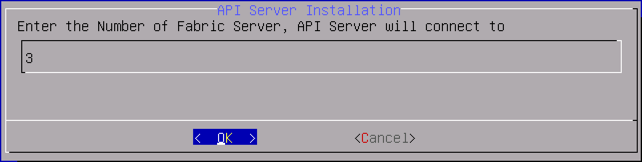
The Number of Fabric Server for API Server
Specify the IP addresses and the respective tunnel IP addresses of the Fabric Servers and click OK.
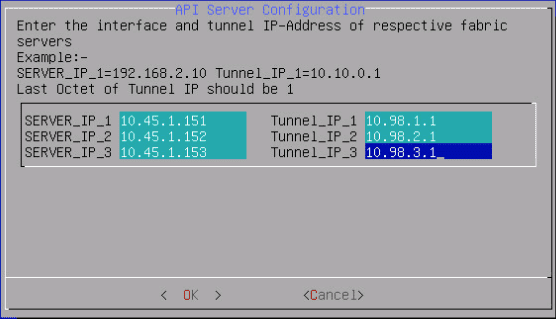
Interface and Tunnel IP-Address of Fabric Servers
Click Back to revisit the configurations or click Continue to proceed.
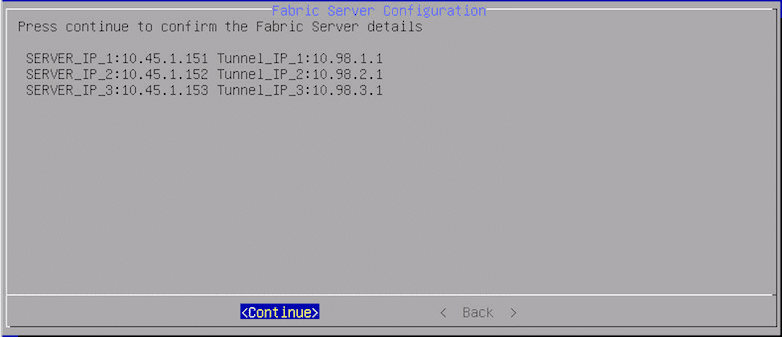
Fabric Server Details
Click OK.
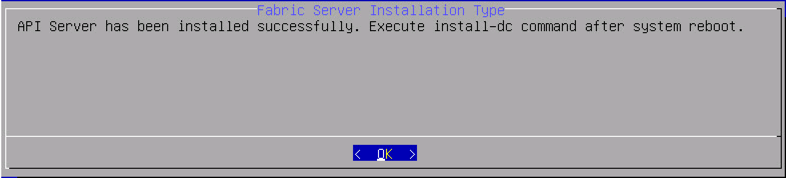
Successful API Server Installation
Enter the IP address of Remote Syslog Server where the Audit Logs should be sent to and click OK.
If the Remote Syslog Server is not ready, you can leave the default settings as they are. You can later execute the change-rsyslogip command to change the IP address of the Remote Syslog Server, once you complete the installation process.
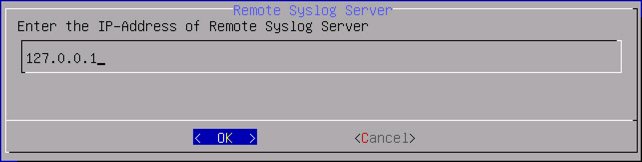
IP Address of Remote Syslog Server
The system reboots to support the new configurations. The Director installation for the API server completes, and the login window appears.

API Login Window
Log in using the following credentials:
username: cmdr-admin
password: changeme
It is recommended to change the password immediately using the passwd command.
Warning
It is mandatory to synchronize the time between all the Director components (Fabric-enabled Logpoint, Logpoint Master, Fabric Server(s), and API Server. Execute the config-ntp command to configure and manage NTP server details.
Execute the install-dc command as cmdr-admin to install the Director Console.
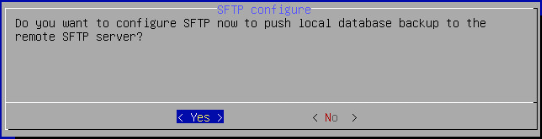
Configuring SFTP
Click Yes to configure SFTP or No to proceed without configuring SFTP.
To configure SFTP, enter the SFTP server IP address, User Name, Password and Data retention Period and click Submit.
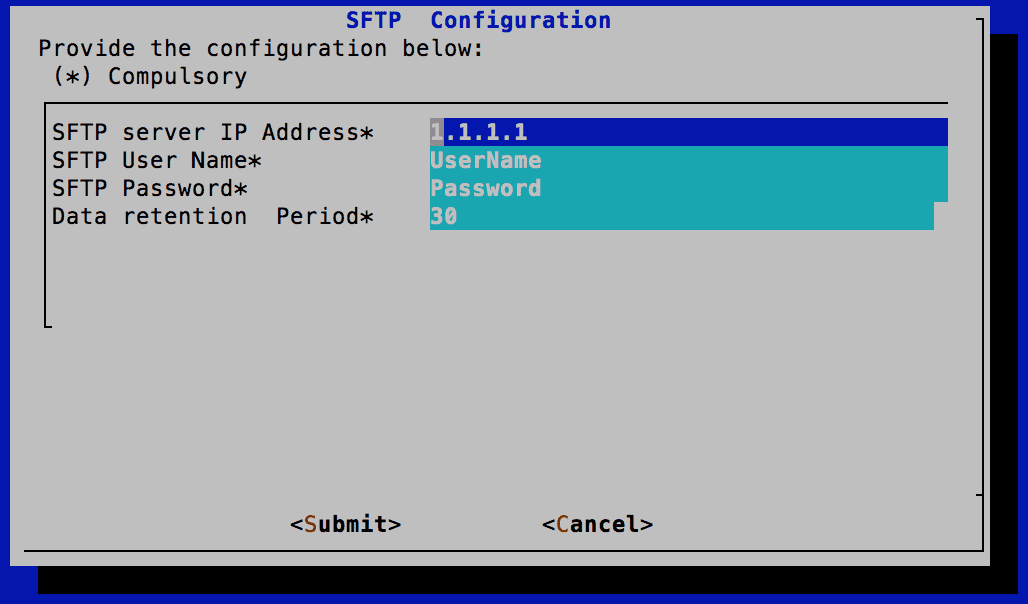
Configuring SFTP
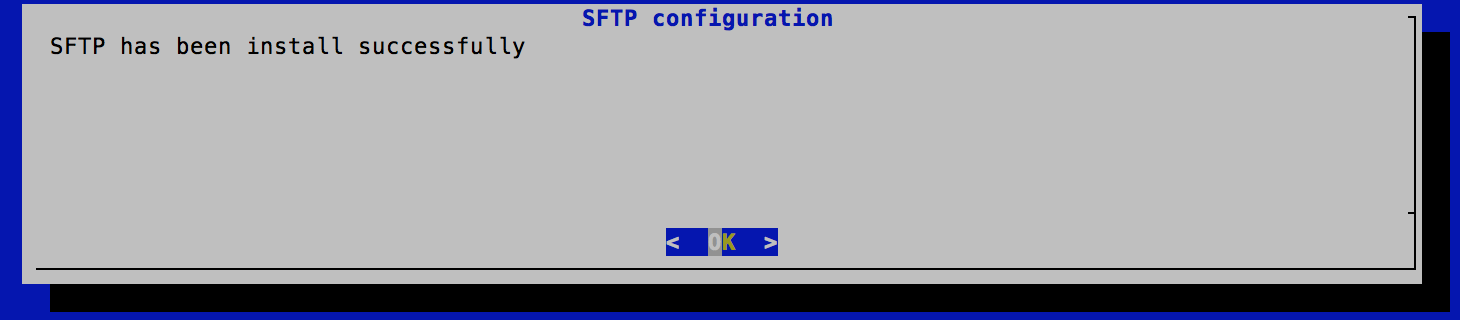
Successful SFTP Configuration
Go to the Configuring SFTP in Director Console for more details.
The installation of the API Server is now complete.
We recommended you to change the password of Fabric Proxy ACL (Access Control List) using the change-fabric-proxyacl command exposed to the API Server, before connecting a Logpoint to the Director setup. The default credentials of the Fabric Proxy ACL are:
username: zkacl
password: Welcome@123
We recommended you to change the password of Fabric Authenticator using the change-fabric-authpwd command exposed to the API Server, before connecting a Logpoint to the Director setup. The default credentials of the Fabric Authenticator are:
username: user: hdfs/admin
password: Welcome@123
The next step is to upload a license. In the Director setup, only the Director users have the authority to upload a license. See the Uploading a Director License section for details.
You must deploy the API Server AMI/OVA/VHD before installing the API Server. To learn how, go to the Deploying the Director AMIs, the Deploying the Director OVAs and Deploying the Director Azure VHDs.
Only one API Server is supported in one Logpoint Director setup.
Access the API Server instance. The installer detects the list of ethernet interfaces connected to the system. Select the appropriate network interface to modify its configuration and click OK.
Select the Network Interface
The installer extracts the configuration of the selected ethernet interface. Revise the configurations if necessary.
Warning
For API Server AMI: Do not change the IP Address, Netmask, and Gateway. AWS environment does not allow these changes after launching the instances.
Enter the Network Configuration
Click Submit.
Confirming the New Network Configuration
Click Continue. You can click Back to revisit the configurations.
Enter the number of Fabric Server instances for the API Server to connect.
The Number of Fabric Server for API Server
Click OK.
Specify the IP addresses and the respective tunnel IP addresses of the Fabric Server instances. The tunnel IP is the internal IP address through which the Logpoint Director components communicate with each other.
Interface and Tunnel IP-Address of Fabric Servers
Click OK.
Fabric Server Details
Click Continue. Click Back to revisit the configurations. The system reboots to support the new configurations.
Enter the API Server’s default credentials:
username: cmdr-admin
password: changeme
We recommend you to change the password immediately using the passwd command.
Execute the config-ntp command to configure and manage the NTP server.
Warning
It is mandatory to synchronize the time between all the Director components (Fabric-enabled Logpoint instances, Logpoint Search Master, the Fabric Server, and the API Server).
We recommend you to change the password of Fabric Proxy ACL (Access Control List) using the change-fabric-proxyacl command exposed to the API Server, before connecting a Logpoint to the Director setup. The default credentials of the Fabric Proxy ACL are:
username: zkacl
password: Welcome@123
We also recommend you to change the password of Fabric Authenticator using the change-fabric-authpwd command exposed to the API Server, before connecting a Logpoint to the Director setup. The default credentials of the Fabric Authenticator are:
username: hdfs/admin
password: Welcome@123
To learn how to access Director Console, go to the Accessing Director Console section.